User manual

How to use TravelBuxx

Step-by-step TravelBuxx user manual for applicants, front desk, case officers, admins, accountants and agency owners.

πŸš€ Everyone

Getting started

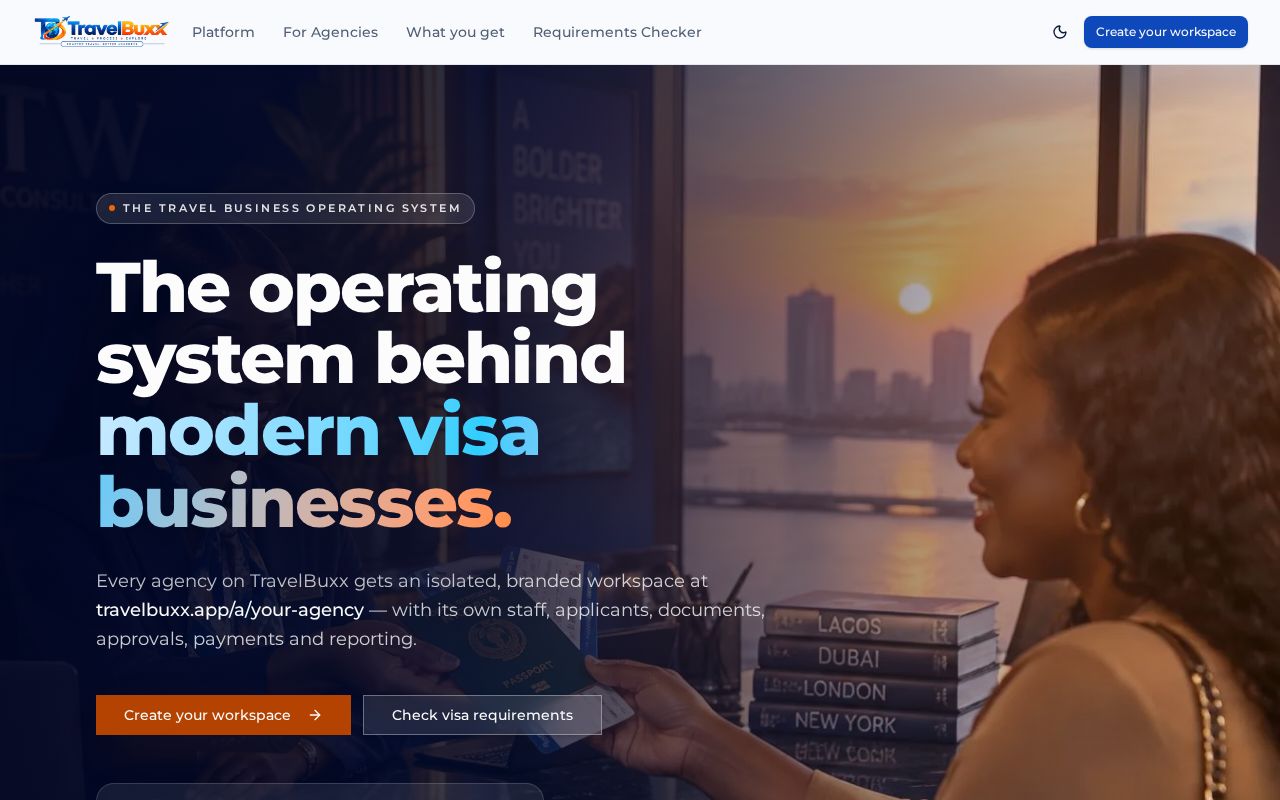
TravelBuxx is the operating system for visa and travel agencies. Every agency has its own private workspace β€” your agency's cases, clients, fees and messages are never visible to another agency.

  1. 1
    Open your agency link

    Use your agency address, e.g. travelbuxx.app/a/your-agency. The address bar always shows which agency you are in.

  2. 2
    Sign in

    Choose your portal (Applicant, Case Officer, Admin/HOD, Accountant, Receptionist or Super Admin) and sign in with your email and password.

  3. 3
    Secure your account

    Super Admins must set up an authenticator app (two-step verification). Others can switch it on under Security.

  4. 4
    Auto sign-out

    For safety you are signed out after 30 minutes of inactivity. Your application drafts are saved automatically.
Getting started
πŸ’‘ Forgot your password? Use 'Forgot password' on the sign-in page.
πŸ’‘ Lost your authenticator? Ask your Super Admin to reset it.
🧳 Applicant

Applicants & travellers

Apply for a visa, upload documents, confirm your form, pay invoices and track progress β€” all from your phone or computer.

  1. 1
    Start an application

    Pick your destination country and visa type. The form is built for that country and saves as you type β€” come back any time within 30 days.

  2. 2
    Upload documents

    Follow the checklist. Each item shows Missing, Pending review, Approved, or Needs replacement with the reviewer's reason.

  3. 3
    Review & confirm your form

    When your officer sends the completed form, check every answer. Press Confirm, or Request changes with a note.

  4. 4
    Pay your invoice

    Download the invoice, pay, then upload your receipt. Status moves from Missing β†’ Pending β†’ Paid once Finance verifies it.

  5. 5
    Track your case

    See your case reference, stage, appointments and the final embassy form to download. Messages and alerts appear in the bell icon.

Applicants & travellers
πŸ’‘ You get an email only for important updates β€” log in to read the full message.
πŸ’‘ Family applications can be linked so everyone travels together.
πŸ›ŽοΈ Receptionist

Receptionist / Front desk

Welcome walk-in clients, start applications on their behalf and keep a safe record of every passport that enters the office.

  1. 1
    Front Desk overview

    Your dashboard shows today's counts and shortcuts: New application, Passport intake, Assign case, Client lookup.

  2. 2
    Log a passport

    Passport tracking β†’ enter Full name (free text), Item type, optional Linked profile and case, Handed to (staff) and notes.

  3. 3
    Hand over safely

    Every handover is timestamped and kept in the history, so you always know who holds a passport.

  4. 4
    Search the register

    Filter by name, linked case, assigned staff or date.

πŸ“ Case Officer

Case Officers

Work your assigned cases from first upload to embassy submission.

  1. 1
    Assisted application

    Create an application for a client who cannot fill it themselves.

  2. 2
    Review documents

    On each case, use the checklist to Approve, Reject (a reason is required) or mark N/A. Select several items for bulk actions.

  3. 3
    Send the form for confirmation

    Use 'Send form to applicant'. The applicant confirms or asks for changes; every round is recorded.

  4. 4
    Activate payment

    Activate payment on the case β€” the Accountant sets the amount and issues the invoice.

  5. 5
    Submission readiness

    The case shows 'Ready to submit' only when all documents are Approved/N/A, the form is confirmed and fees are paid.

  6. 6
    Upload the final embassy form

    Upload the final form (up to 20 MB) so the applicant can download it.

πŸ’‘ Staff can never delete applicant documents β€” request a replacement instead.
πŸ›‘οΈ Admin / HOD

Admin / Head of Department

Distribute work, watch deadlines and keep the team moving.

  1. 1
    My cases & All cases

    See every case in the agency. Filter by stage, officer, or 'Embassy ready'.

  2. 2
    Assign in bulk

    Select cases and assign an officer or change status in one go.

  3. 3
    Document review queue

    Open documents awaiting review across all cases.

  4. 4
    Deadlines (SLAs)

    Stage time limits flag overdue cases so nothing is forgotten.

  5. 5
    Team & invitations

    Invite staff, resend invitations, or send a test invitation to yourself first.

πŸ’³ Accountant

Accountants & Finance desk

Only Accountants issue invoices and record payments. All amounts are in Naira (₦) by default.

  1. 1
    Finance inbox

    Activated cases arrive with applicant, case reference and officer details.

  2. 2
    Create the invoice

    Upload the QuickBooks invoice, enter the amount and Send for approval.

  3. 3
    Returned for changes

    If the Super Admin returns it, read the note, fix and resubmit.

  4. 4
    Verify receipts

    'Receipts to verify' lists uploaded receipts. Verify (Paid), Reject (new receipt needed) or Request correction.

  5. 5
    Transaction register

    Every payment receives a number like TXN-2610-0001. Record expenses and petty cash too.

Accountants & Finance desk
πŸ’‘ Every step is logged in the invoice audit trail with names, times and notes.
πŸ‘‘ Super Admin / Owner

Super Admin / Agency Owner

The final decision-maker for the agency: approvals, payments, staff and settings.

  1. 1
    Final verdicts

    Approve cases and payments that are waiting for Super Admin approval.

  2. 2
    Approve invoices

    Edit, Return with a note, or Approve & send to the applicant.

  3. 3
    Team messages

    Message one staff member or broadcast to Everyone in the agency.

  4. 4
    Staff & roles

    Invite staff, choose access levels, reset authenticators, review audit history.

  5. 5
    Passport tracking & documents

    See the passport register and document review queue from your own workspace.

🏒 New agencies

Onboarding a new agency

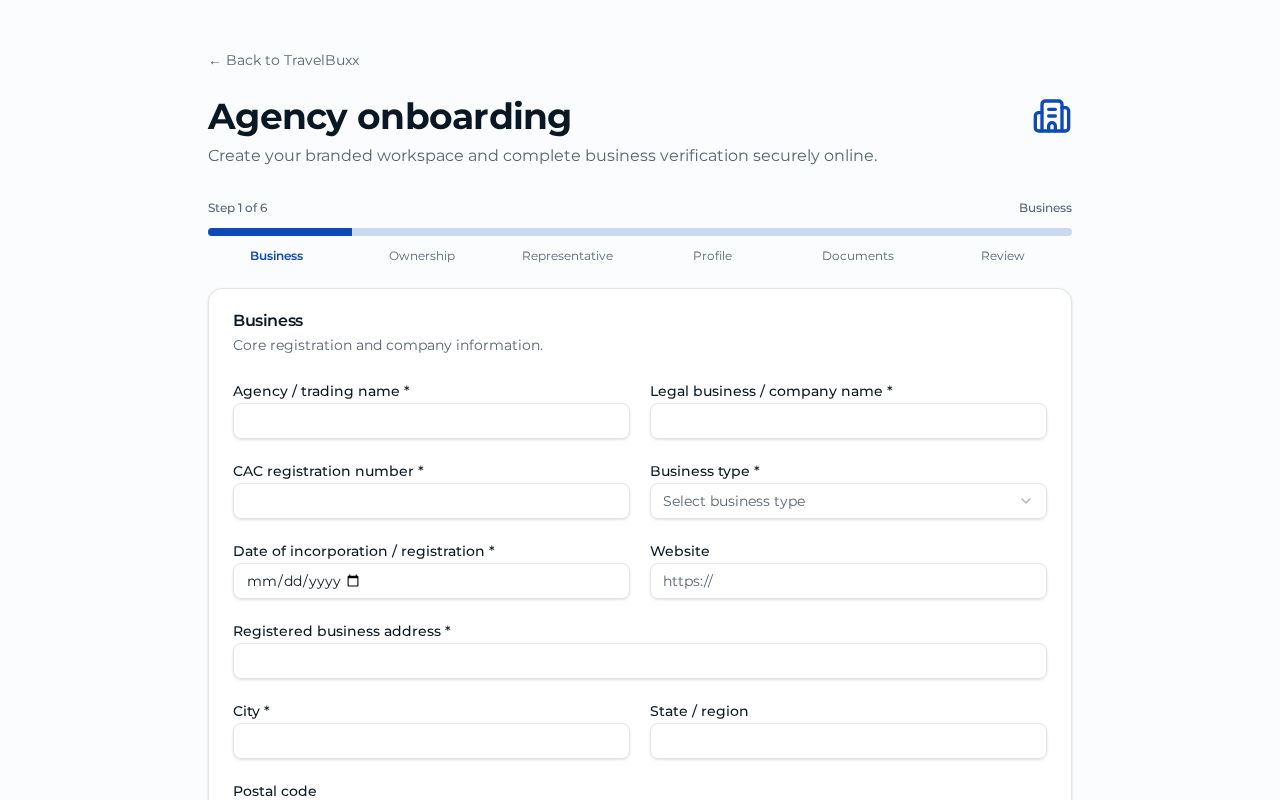
Any travel agency can join TravelBuxx online through a six-step form at travelbuxx.app/start. It takes about 15 minutes. Have your CAC papers, IDs and company details ready before you begin.

  1. 1
    Before you start β€” what you need

    CAC registration certificate, an ID for a director or beneficial owner, an ID for the authorised representative (PDF, PNG or JPG, max 10 MB each), your TIN, official company email and phone, and optionally your logo and brand colour.

  2. 2
    Step 1 Β· Business

    Enter trading name, legal company name, CAC registration number, business type, date of incorporation, website (optional), registered address, city, state and postal code.

  3. 3
    Step 2 Β· Ownership

    List every director and beneficial owner with their full name and capacity (Director, Beneficial owner, or both). Use 'Add another person' for more than one.

  4. 4
    Step 3 Β· Representative

    Name the authorised representative and their position, plus the official company email, phone, Tax Identification Number (TIN) and operational address. This person becomes the agency's first Super Admin.

  5. 5
    Step 4 Β· Profile

    Describe your travel services, choose expected monthly application volume and pick your workspace address (travelbuxx.app/a/your-agency) β€” a green tick shows it is available. Upload your logo and set your brand colour.

  6. 6
    Step 5 Β· Documents

    Upload the three verification documents: CAC certificate, director/owner ID and representative ID. Files are private and only seen by authorised reviewers.

  7. 7
    Step 6 Β· Review & declare

    Check the summary, tick the declaration that all information is true, type the representative's full name and Submit.

  8. 8
    Get your reference & track status

    You receive an acknowledgement email with a reference number. Use 'Check my application status' (travelbuxx.app/start/status) any time: Under review β†’ Approved or Not approved. Reviews usually take 1–2 working days.

  9. 9
    Approval & first sign-in

    When approved, the representative receives an email to set a password and set up an authenticator app. You then sign in as Super Admin at your workspace address.

  10. 10
    Set up your workspace

    Invite staff (Admin/HOD, Case Officers, Accountant, Receptionist), add your countries, visa types and fees, set stage deadlines, and share your agency link with clients.

Onboarding a new agency
πŸ’‘ You can't skip steps β€” each step checks required fields before you continue.
πŸ’‘ If not approved, contact support from the status page; we will help you correct it.
πŸ’‘ Use an email you check often β€” all onboarding updates go to the official company email.

Quick answers

I'm in the wrong workspace.

Sign out, then sign in from the portal for your role (e.g. Admin, not Super Admin).

My invitation email didn't arrive.

Check spam, then ask your admin to resend or copy the invitation link.

Why can't I submit to the embassy?

All documents must be Approved/N/A, the form confirmed and fees paid.

Who can change the invoice amount?

Only Accountants (and the Super Admin when approving).

Ask Buxxy